
TUTORIAL - UPLOADING AND MANAGING YOUR MUSIC FROM YOUR PC/MAC...
1. To prepare your Tapeless Deck for first use, turn on WiFi connectivity on deck player and login to your home network. Remember that both Tapeless Deck and your computer (a source of music files) must work in the same network.
2. Click AirDroid  icon and wait a while for the next screen. At the first use it may take some time...
icon and wait a while for the next screen. At the first use it may take some time...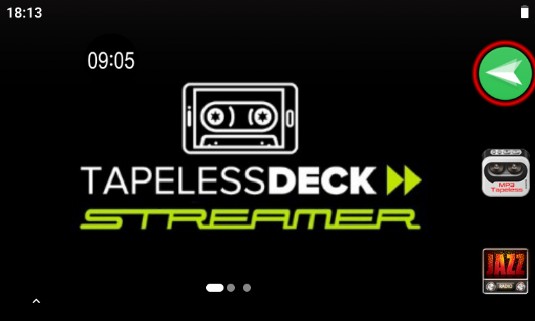
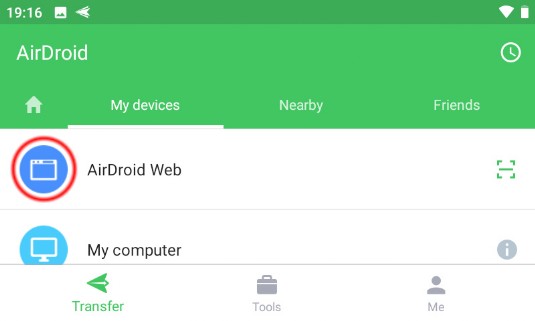
3. Find and click blue "AirDroid Web" icon. It may be covered by ads, so sometimes you will need to scroll the screen to find it...
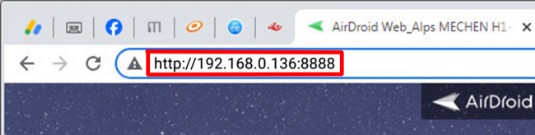
4. The AirDroid Web server starts. Read and exactly rewrite the green address fom AirDroid into the web browser addres field on your computer (just where you usually write "www.google.com" or other addresses).
Please be carefull and rewrite all letters, numbers, slashes, points and colons: http://192.168.xxx.xxx:8888 - please note the ":" colon mark before "8888"
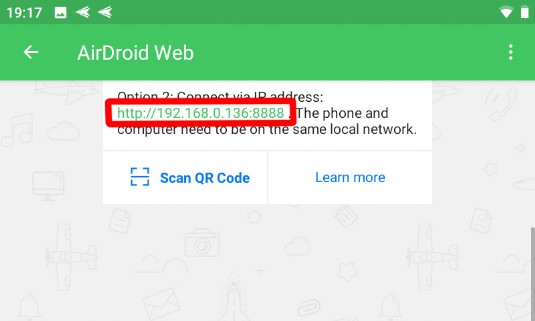
5. Remember, DO NOT rewrite the address from this tutorial - use exact address actually provided by AirDroid.
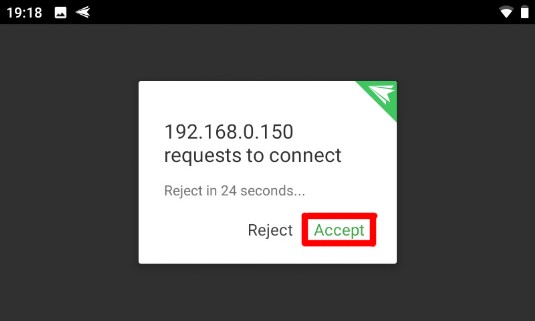
6. Did you hear the whistle? Go back to the deck and accept the connection on player screen.
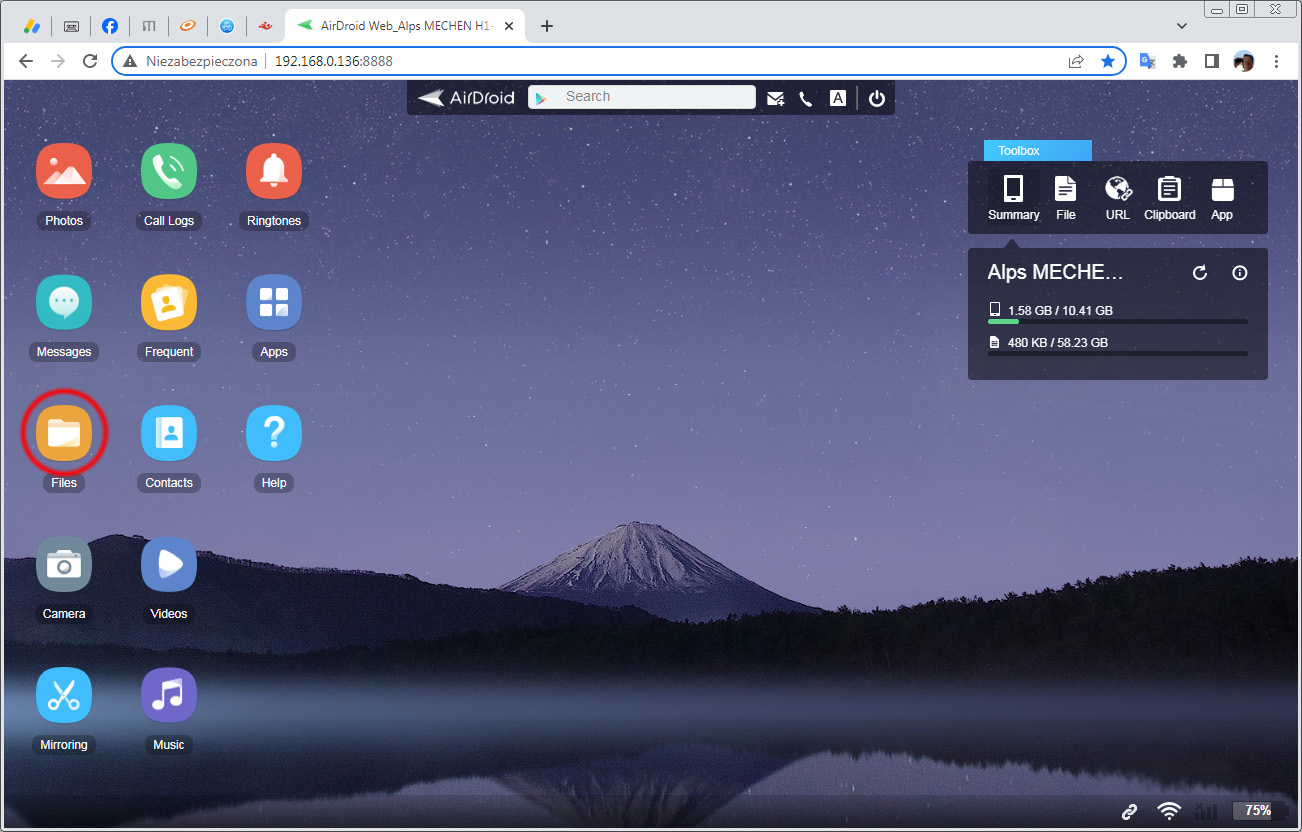
7. Now your web browser will show a webpage generated by AirDroid. It contains lot of useful informations about Tapeless Deck phone, such as available memory or battery status, and other junk that completely does not interest us at this moment.
Click FILES icon...
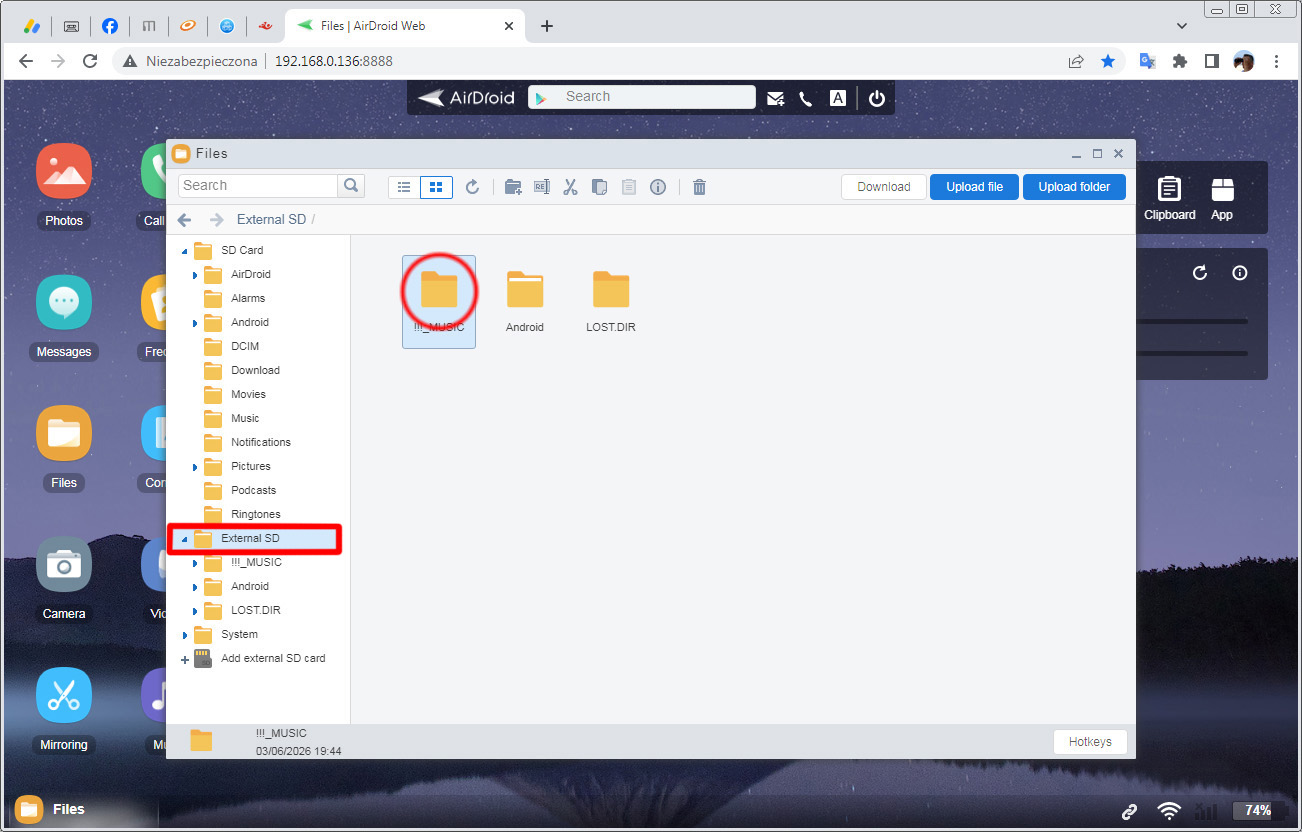
8. Localize and open "!!!_MUSIC" folder on External SD Card. This is your Tapeless Deck music catalog. You will find a few songs here that were uploaded during testing. Delete the files if you wish or use them to test your deck quickly.
9. Now you can upload music from your computer to the Tapeless Deck memory. Open folder with music files in your computer, select desired files or folders and just drag them to the !!!_MUSIC folder on Tapeless Deck. Wait for the transfer to finish, observing the transfer status window on the lower right corner. That's all - now you may use Tapeless Deck app :)
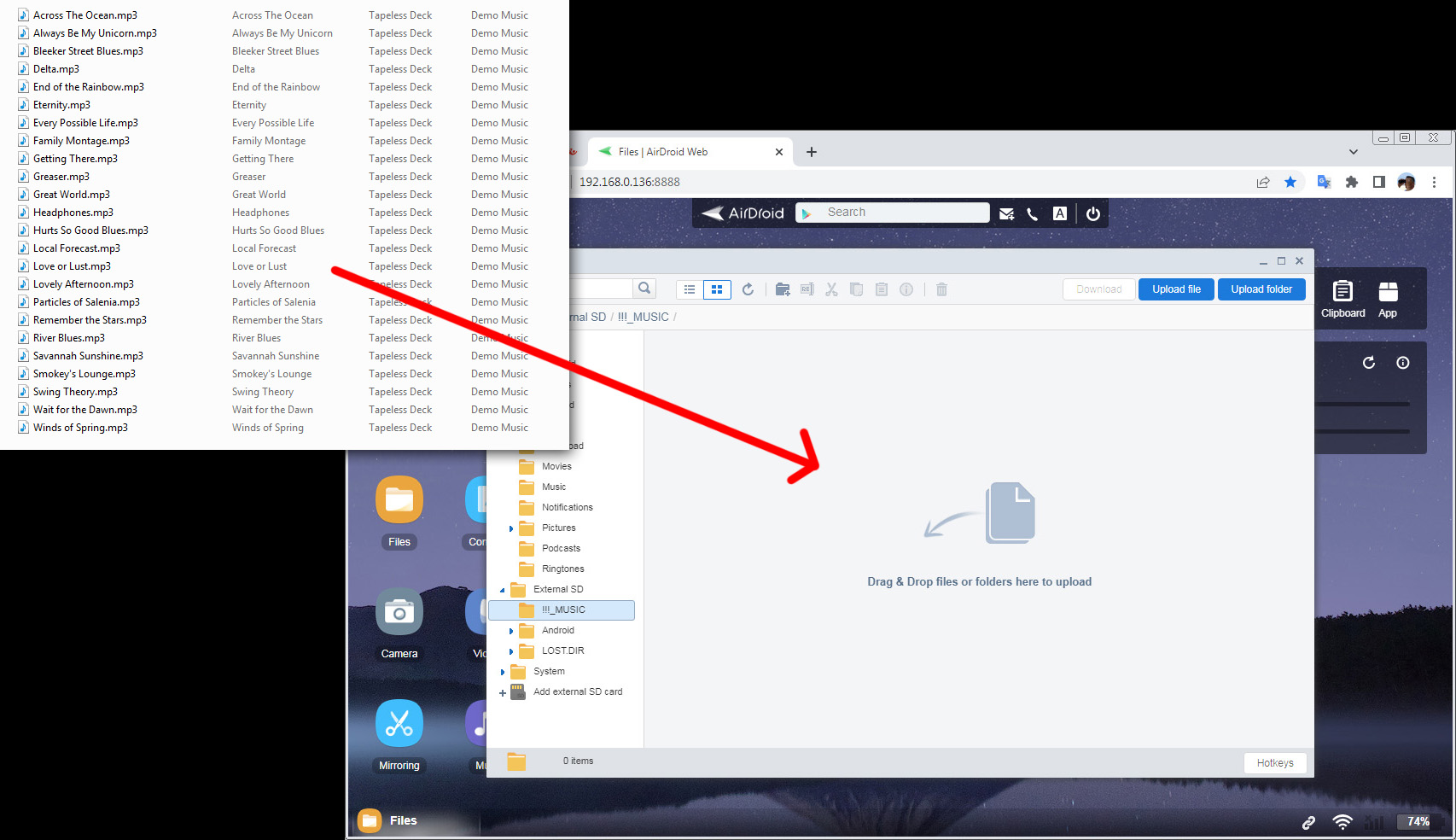
It's a good idea to have your music organized in folders before transfer - by artists, albums, genres and so on, but if your files have correct MP3 tags, Tapeless Deck app will sort it automatically.
NOTE! In some cases, when the Tapeless Deck app can't find freshly uploaded songs (especially after big transfers), just restart the player. Hold the power switch (a dedicated deck key or button) for a few seconds, wait for a menu to appear and select RESTART.
Is there something still unclear? Just let me know - I will complete this page with missing information.